> ## Documentation Index
> Fetch the complete documentation index at: https://docs.nudj.cx/llms.txt
> Use this file to discover all available pages before exploring further.
# Calendar View
> Visual scheduling for challenges: month view, timezone clarity, Today button, challenge indicators
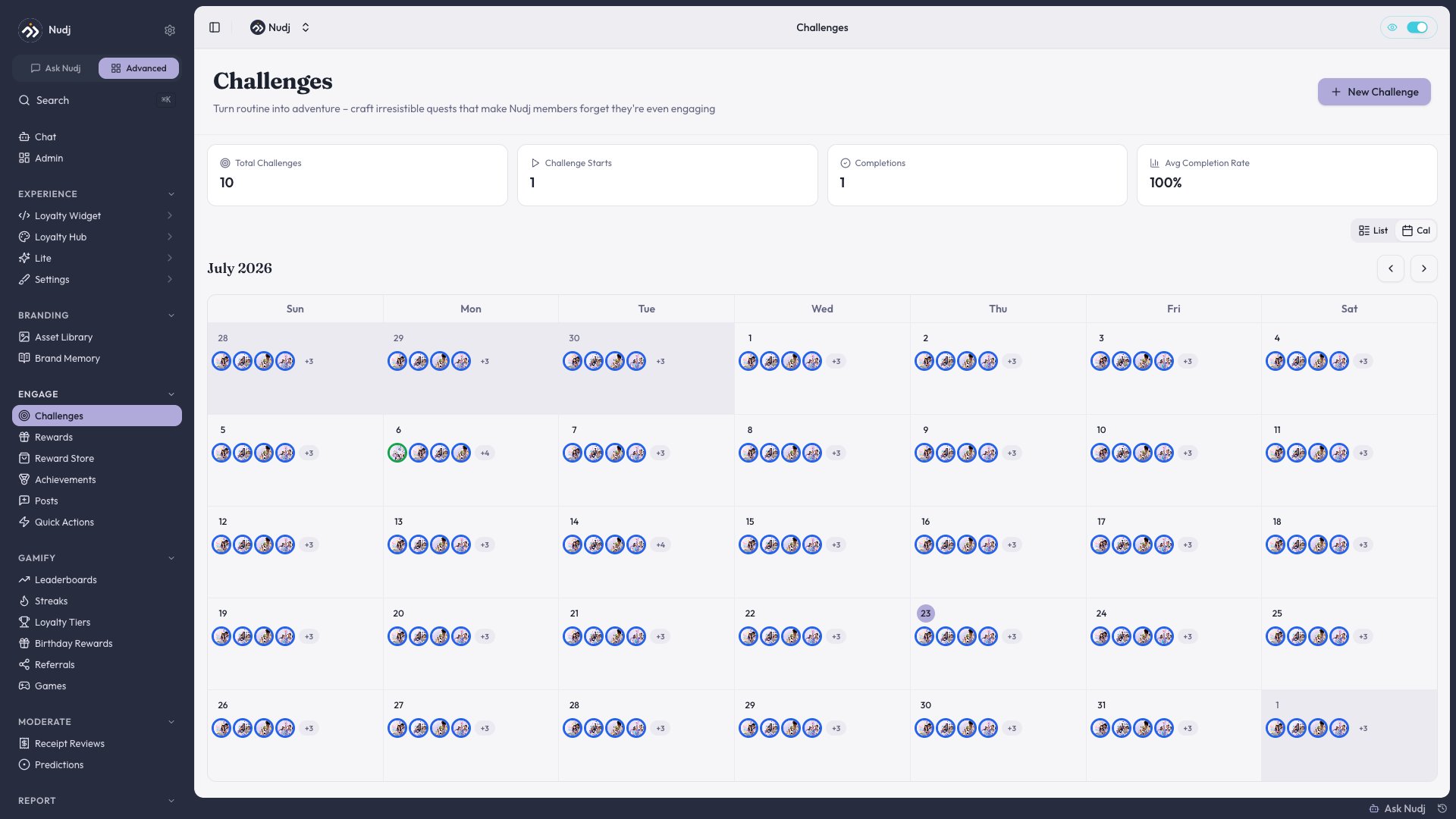
The Calendar View visualises challenges on a month grid — each challenge is a bubble spanning its start → end dates. Essential when you run many overlapping challenges.
## Opening the calendar
From the challenges list view, click the **Calendar** tab (#1511).
 ***
## Navigation
* **Today** button (#1150) jumps back to the current week / month.
* **Arrows** step back/forward by month.
* Click any bubble to open the challenge editor.
Calendar design was refined in #1649 — colour-coded by status, challenge indicators, and clearer day boundaries.
***
## Timezone clarity
Every date in the calendar shows the **timezone** explicitly (#1505) — avoids the "oh wait, does this go live in my tz or the org's tz?" ambiguity.
Default timezone comes from your org settings (see [General Settings](/admin-guide/settings/general)). Individual challenges can override.
***
## Challenge indicators
The calendar uses colour-coded markers on each day to show challenge state at a glance: green for start, blue for running, red for end. Hover a day to see which challenges are involved.
***
## Date picker z-index
The calendar date picker (and campaign date picker, #1731, #1804) plays nicely with modals — no more z-index fights where the picker hides behind another dialog.
***
## Uses
Open calendar, switch to month view, see all scheduled challenges. Look for dead zones (no challenges) and over-packed weeks (3+ overlapping). Adjust.
Cross-reference [campaigns](/admin-guide/challenges/campaigns) with the calendar's challenge markers to see which challenges fall inside vs outside a campaign window. Fix the boundaries.
Before a big launch, check the calendar for the launch week — avoid launching in a week with 5 other live challenges.
***
## Switching between views
Calendar and List share the same filter state. Apply filters on List, switch to Calendar, and the filter persists — useful for "show me only campaign X on the calendar".
***
## Navigation
* **Today** button (#1150) jumps back to the current week / month.
* **Arrows** step back/forward by month.
* Click any bubble to open the challenge editor.
Calendar design was refined in #1649 — colour-coded by status, challenge indicators, and clearer day boundaries.
***
## Timezone clarity
Every date in the calendar shows the **timezone** explicitly (#1505) — avoids the "oh wait, does this go live in my tz or the org's tz?" ambiguity.
Default timezone comes from your org settings (see [General Settings](/admin-guide/settings/general)). Individual challenges can override.
***
## Challenge indicators
The calendar uses colour-coded markers on each day to show challenge state at a glance: green for start, blue for running, red for end. Hover a day to see which challenges are involved.
***
## Date picker z-index
The calendar date picker (and campaign date picker, #1731, #1804) plays nicely with modals — no more z-index fights where the picker hides behind another dialog.
***
## Uses
Open calendar, switch to month view, see all scheduled challenges. Look for dead zones (no challenges) and over-packed weeks (3+ overlapping). Adjust.
Cross-reference [campaigns](/admin-guide/challenges/campaigns) with the calendar's challenge markers to see which challenges fall inside vs outside a campaign window. Fix the boundaries.
Before a big launch, check the calendar for the launch week — avoid launching in a week with 5 other live challenges.
***
## Switching between views
Calendar and List share the same filter state. Apply filters on List, switch to Calendar, and the filter persists — useful for "show me only campaign X on the calendar".